
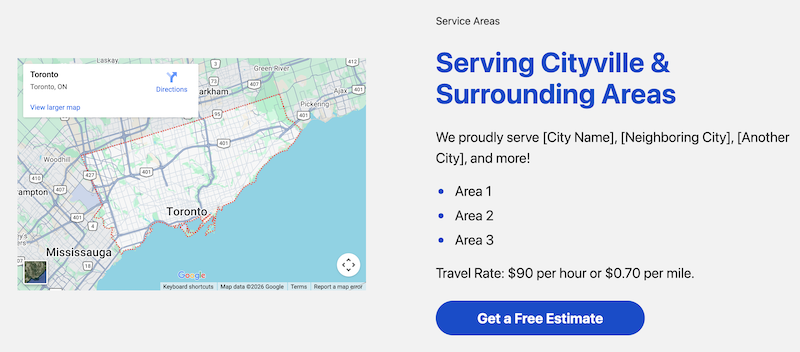
I’m going to walk you through exactly how to embed a Google Map with your business profile on your Carrd website. I’ll use my friend’s business, Golden Auto Repair, as a real-world example so you can see how this looks in action.
Why Add a Google Map to Your Carrd Site?
Before we get into the how, let’s talk about the why.
When someone lands on your site, they want answers fast. Where are you? Do you serve their area? What do other customers say about you?
A Google Map embed does three things at once:
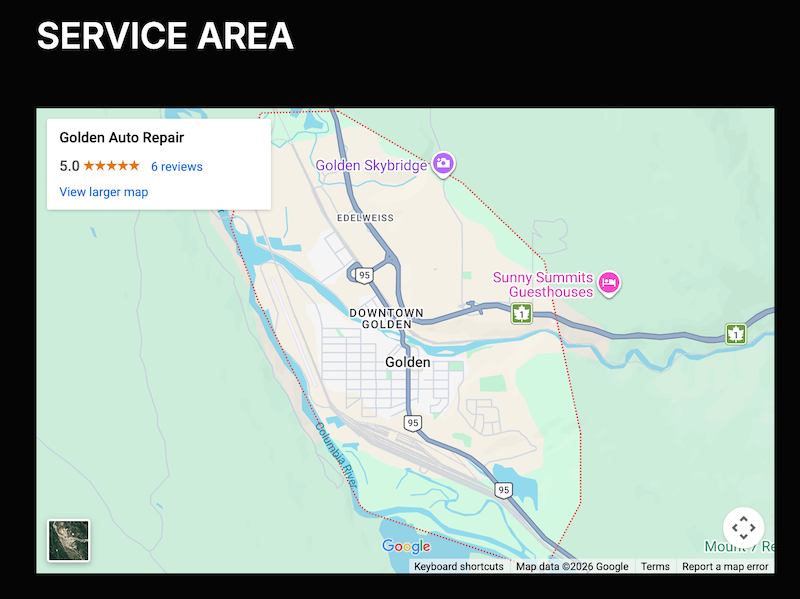
- Shows your location visually – People process images faster than text. A map communicates your service area instantly.
- Displays your Google reviews – Your star rating and review count appear right on the embedded map, giving you instant credibility.
- Makes it easy to get directions – Visitors can click through to get turn-by-turn directions without leaving your page.
I use this feature on my Local Service Business Carrd template specifically for small business owners who need to convert local traffic. If you bought one of my templates, this is how you customize the map section for your business.
What You Need Before Starting
You need a Google Business Profile. That’s it.
If you don’t have one yet, go to business.google.com and set it up. It’s free, and it takes about 10 minutes. You’ll need to verify your business, which Google typically does by mailing you a postcard with a code.
Without a Google Business Profile, you can still embed a map of your location, but you won’t get the business name, reviews, or directions button—which is half the value.
Step-by-Step: How to Embed Your Google Map on Carrd
Step 1: Go to Google Maps
Open your browser and head to https://www.google.com/maps/>.
Step 2: Search for Your Business
Type your business name into the search bar. In my case, I’m searching for “Golden Auto Repair.”
Google will show your business listing on the left side of the screen, with your location pinned on the map.
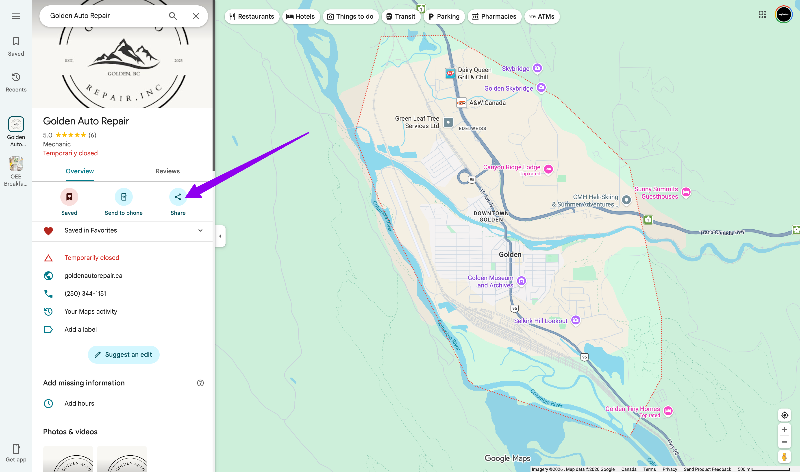
Look for the “Share” button. It’s usually right below your business name in the panel on the left side.
Click it.
Step 4: Select “Embed a Map”
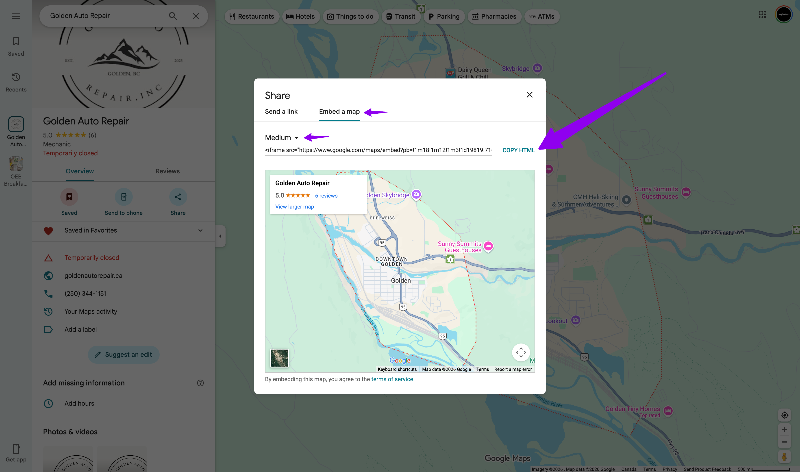
A pop-up window will appear with two tabs: “Send a link” and “Embed a map.”
Click on “Embed a map.”
Step 5: Choose Your Map Size (Optional)
Google gives you a few preset size options:
- Small
- Medium
- Large
- Custom size
For most Carrd sites, Medium works well. But if you want more control, select “Custom size” and adjust the width and height values.
You can always tweak these later directly in the embed code if needed.
Step 6: Copy the HTML Code
Once you’re happy with the size, click “Copy HTML” to copy the iframe code to your clipboard.
The code will look something like this:
html
<iframe src="https://www.google.com/maps/embed?pb=..." width="600" height="450" style="border:0;" allowfullscreen="" loading="lazy"></iframe>Step 7: Paste the Code into Carrd
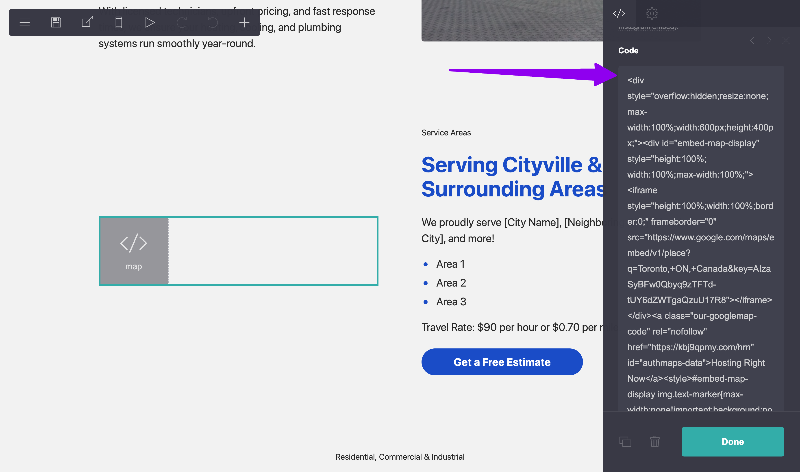
Now log in to your Carrd site and open the page where you want the map to appear. The map only shows the live card website – not in the Carrd editor. So don’t be alarmed when its not visible.
- Click the “+” button to add a new element
- Scroll down and select “Embed”
- In the Type dropdown, choose “Code”
- Give it a title if you want (like “map”)
- Set the Style to “Inline”
- Paste your copied HTML code into the Code field
Click “Done” and you’re set.
Step 8: Preview and Adjust
Hit the preview button to see how your map looks on the page.
If it’s too big or too small, go back into the embed settings and adjust the width and height values in the HTML code.
For example, to make it responsive, you can change:
html
width="600" height="450"to:
html
width="100%" height="400px"This makes the map stretch to fill its container while maintaining a fixed height.
What Your Visitors Will See
Once embedded, your map will show:
- Your business name (e.g., “Golden Auto Repair”)
- Your star rating and number of reviews (e.g., “5.0 ★★★★★ 6 reviews”)
- A “View larger map” link for full directions
- Your location pinned on an interactive map
People can zoom in, zoom out, and click through to Google Maps for turn-by-turn directions—all without leaving your page.
Pro Tips for Local Service Businesses
1. Place the map in your service area section
I put mine right under a heading like “Serving Cityville & Surrounding Areas” with a list of service areas. This reinforces your coverage area while providing the visual proof.
2. Keep your Google Business Profile updated
If your hours change, your phone number changes, or you get new reviews, that information will automatically update in your embedded map. This is why Google Business Profile is so powerful.
3. Encourage reviews
The star rating shows up right on your map embed. More 5-star reviews = more trust = more calls. After you finish a job, send a follow-up text or email asking happy customers to leave a review.
4. Use it on your homepage
Don’t hide this in a “Contact” page buried three clicks deep. Put it front and center. Local customers want to know you’re nearby before they do anything else.
Common Questions
Can I embed a map without a Google Business Profile?
Yes, but you’ll only get the map pin, not your business name, reviews, or directions button. You’re better off setting up a profile first.
Will the map slow down my Carrd site?
Not noticeably. Google Maps embeds are optimized and load asynchronously, so they won’t block the rest of your page from loading.
Can I customize the map colors or style?
Not with the basic embed code. If you want a custom-styled map, you’d need to use the Google Maps JavaScript API, which is overkill for most Carrd sites.
What if my business moves?
Update your address in Google Business Profile, and the embedded map will automatically update. You don’t need to change anything on your Carrd site.
Wrapping Up
Embedding a Google Map on your Carrd site takes about 5 minutes and gives your visitors instant clarity about where you are, how to reach you, and what others think of your work.
If you grabbed my Local Service Business template, you already have the structure set up—you just need to swap in your own map embed code and you’re good to go.
Golden Auto Repair uses this exact setup, and it works. People see the 5-star rating, they see the location, and they call.
Now go set yours up.

Web designer and developer. I love building high-converting 1-page website templates for Carrd. I’ve been featured on: Behance, Canva, Search Engine Journal, CBC, CTV and more…